
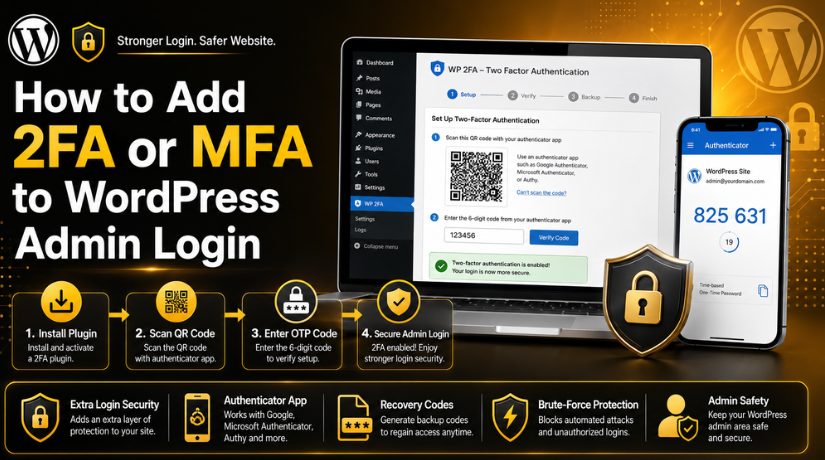
How to Add 2FA or MFA to WordPress Admin Login
Introduction
WordPress admin login is the main gate of your website. If someone enters it, they can control many things. They can change plugins, edit themes, add users, or remove content. This is why login security should never be ignored.
Weak or stolen passwords are often the first step in WordPress assaults. Some users also reuse the same password on many websites. If one account gets leaked, your website may become unsafe. Brute-force attacks are also common on WordPress login pages. In this attack, bots try many passwords again and again.
WordPress two-factor authentication comes in handy in this situation. It adds one more security step after the password. Therefore, even if someone is aware of your password, they still require a different code.
WordPress admin two factor authentication is useful for:
- Blog owners
- Business websites
- WooCommerce stores
- Membership websites
- Agency-managed websites
Adding 2FA or MFA is a simple way to protect your dashboard. It helps stop unwanted login attempts before they reach your admin area.
What Are 2FA and MFA in WordPress Admin Login?
Two-factor authentication is referred to as 2FA. Multi-factor authentication is referred to as MFA. Both terms are used for extra login checks. In WordPress, they usually work in a very similar way.
Entering your username and password is the first step in the login process. After that, WordPress asks for another proof. This proof can be a code from your phone. It can also come through email, SMS, or a security key.
You might set up an authenticator app on your phone, for instance. The app creates a fresh code every few seconds. You enter that code after your password. Then WordPress allows you to access the dashboard.
If you want to learn how to add 2FA in WordPress, this method is the easiest start. It does not need custom coding. You can also learn how to enable MFA in WordPress using a trusted plugin. This gives your admin login stronger protection with less effort.
Why WordPress Admin Login Needs 2FA or MFA
Your WordPress admin login controls your complete website. It gives access to posts, pages, themes, plugins, and users. If hackers enter this area, they can damage your website. They may add spam links, steal data, or change settings. For this reason, two-factor authentication for WordPress administrators is crucial. It adds one more check before dashboard access is allowed.
It Protects Against Stolen Passwords
Passwords are not always enough for strong website security. Many users save passwords in browsers or reuse them online. If one account gets leaked, other accounts become risky too. Attackers can use stolen passwords to access WordPress login pages.
2FA helps reduce this risk. After the password, WordPress asks for another code. Typically, an authenticator app provides this code. Therefore, the dashboard cannot be accessed by a stolen password alone. This gives your website another safety layer.
It Reduces Brute-Force Login Risk
Brute-force attacks are common on WordPress websites. In this attack, bots try many username and password combinations. They keep trying until one login works. Weak usernames like “admin” make this risk higher.
2FA or MFA blocks many of these attempts. A second code is required even if a bot manages to guess the password. That code changes often and stays with the real user. This makes forced login attempts much harder to complete.
It Adds Extra Safety for Admin Users
Admin users have the highest control inside WordPress. They can install plugins, delete pages, update themes, and manage users. For WooCommerce sites, admins may also access orders and customer details.
This is why admin accounts need stronger protection. A simple password cannot protect every high-risk action. Extra login checks help keep your website safer.
Best Method to Add 2FA or MFA to WordPress Admin Login
The best method is using a trusted WordPress 2FA plugin. This is easier than adding custom code. A plugin gives ready settings inside your WordPress dashboard. You can enable login protection without touching theme files.
A good plugin also gives multiple verification options. These may include app codes, email codes, backup codes, and user role settings. This helps you protect admin users first. Then you can enable 2FA for editors, shop managers, or other team members.
When choosing the best 2FA plugin for WordPress, check these points:
- It should have regular updates.
- It should support authenticator apps.
- It should offer recovery codes.
- It should allow role-based settings.
- It should have clear setup steps.
- It should work with your current security plugin.
You should avoid unknown or outdated plugins. An old plugin may create login problems. It may also conflict with your WordPress version.
A plugin is the safest choice for the majority of website owners. It maintains the setup’s simplicity and control.
It also helps you manage WordPress two factor authentication without developer work. This makes it a useful technique for WooCommerce stores, blogs, and company websites.
Popular WordPress Plugins That Provide 2FA
Many plugins can help you add 2FA to WordPress login. These plugins make setup easier for beginners and website owners. They also help protect admin users without custom coding.
A good WordPress 2FA plugin should support app-based codes. It should also provide recovery codes and clear setup steps. Some plugins also allow role-based settings. This helps you enable 2FA for admins, editors, or shop managers.
Here are some popular plugins that provide 2FA for WordPress:
WP 2FA
WordPress two-factor authentication is made possible by WP 2FA. It supports 2FA for administrators and specific user roles. It also offers setup wizards with clear instructions. Because of this, both corporate websites and non-technical individuals can benefit from it.
Two Factor
Two Factor is a straightforward plugin for WordPress.org. It adds another login check after the password. Users can set up the second factor from their profile area. For those who like straightforward login security, it’s a tidy choice.
Two Factor Authentication
Using one-time codes, Two Factor Authentication makes WordPress login more secure. Users need a code to log in when it is enabled. It can be useful for site owners who want a focused 2FA setup.
Wordfence Security
Wordfence Security includes 2FA with other security features. It supports TOTP-based authenticator apps. It also includes login CAPTCHA and XML-RPC protection options. This can help users who want wider login security.
When choosing the best 2FA plugin for WordPress, avoid outdated plugins. Check plugin updates, reviews, support, and compatibility. Also confirm that the plugin provides recovery options. This helps you secure WordPress login without creating access problems.
Things to Check Before Enabling 2FA in WordPress
Before enabling 2FA, prepare your website and login access first. This helps you avoid login issues after setup. A small check can save time later. It also keeps your website safe during the setup process.
Take a Website Backup First
Always take a full website backup before changing login security. Your backup should include website files and the database. You can swiftly recover your website if something goes wrong. When evaluating a new security plugin, this is quite helpful. Additionally, it protects user data, settings, and content.
Confirm Admin Email Access
Check your WordPress admin email before starting the setup. Some plugins send recovery links or security notices by email. If your admin email is wrong, recovery may become difficult. Open Settings → General and confirm the admin email address. Also check that your inbox can receive WordPress emails.
Install an Authenticator App
Most 2FA setups use an authenticator app. You can install Google Authenticator, Microsoft Authenticator, Authy, or another trusted app. This app creates a short login code on your phone. You will enter this code after your password. When learning how to correctly enable 2FA in WordPress, this step is crucial.


Keep Recovery Codes Safe
Recovery codes help when your phone is lost or unavailable. Many plugins show these codes during setup. Copy them and save them in a secure place. Do not keep them inside your WordPress dashboard only. You may need them when dashboard access is blocked.
How to Add 2FA in WordPress Admin Login Step by Step
Now you can start the setup process. The easiest way is using a reliable plugin. This method helps beginners secure login access without coding.
Step 1: Choose a Reliable 2FA Plugin
Select a plugin that has received positive feedback and frequent updates. It should support app-based codes and recovery codes. Before selecting a WordPress 2FA plugin, you can evaluate your options. Select one that fits your website and user roles.
Step 2: Install and Activate the Plugin
Go to WordPress Dashboard → Plugins → Add New. Search for your selected plugin. Click Install Now, then click Activate. After activation, you can open plugin settings and continue setup.
Step 3: Open the Plugin Settings
Open the plugin settings from your dashboard after it has been activated. Most plugins add settings under Users, Settings, or Security. Some plugins may also show a setup wizard.
Open the setup page and review all available options. Check which login methods the plugin supports. Most plugins support app-based codes, email codes, or backup codes. Select the approach that best suits the requirements of your website.
Step 4: Enable 2FA for Admin Users
First, make sure that administrator accounts have 2FA enabled. Admin users have the highest control on your website. They can install plugins, change themes, edit users, and update settings.
This is why WordPress admin two factor authentication should start with admin accounts. Later, you can enable it for editors, shop managers, or support users.
A good WordPress 2FA plugin may allow role-based settings. This means you can require 2FA for selected user roles only.
Step 5: Scan the QR Code With an Authenticator App
During setup, the majority of plugins display a QR code. On your phone, launch your authenticator app. Then scan the QR code from the plugin screen.
The app will add your WordPress website to its list. After that, it will create a fresh login code. This code usually changes every few seconds.
Adding 2FA to WordPress requires completing this crucial step. It connects your website login with your mobile app.
Step 6: Enter the Verification Code
Enter the code that appears in your authenticator app now. Add it inside the plugin verification field. Then click the confirm or verify button.
This step proves that your app is connected correctly. If the code fails, check your phone time settings. Wrong time can cause code mismatch issues.
Step 7: Save Recovery Codes
After setup, a lot of plugins offer recovery codes. Keep these codes in a secure location. If you misplace your phone, they assist you in logging in.
Do not store recovery codes only inside WordPress. Store them in a safe offline file or password manager.
Step 8: Test Login in a Private Window
Before logging out, open a private browser window. Try using your password and username to log in. Then enter the 2FA code from your app.
This test confirms that WordPress two factor authentication works correctly. Once login works, your setup is ready.
How to Enable MFA in WordPress for Multiple Admin Users
If your website has many users, enable MFA for all high-access accounts. Start with administrators because they control the full website. Then protect editors, shop managers, and support users. For business websites and WooCommerce stores, this is crucial.
Each user should set up their own verification method. Do not share one admin account with many people. Shared accounts make activity tracking difficult. They also increase login security risks.
When learning how to enable MFA in WordPress, check user roles carefully. Enable MFA for users who can change website settings, content, orders, or customer details.
Common Problems After Enabling 2FA and How to Avoid Them
Some users may face small issues after setup. Most problems happen because recovery options were not saved.
Common issues include:
- Lost phone or deleted authenticator app.
- Wrong time settings on the mobile device.
- Plugin conflict with another security tool.
- Missing recovery codes after setup.
- Email delivery issues for login codes.
You can avoid these problems with simple planning. Save recovery codes before testing the login. Keep admin email access active. Also keep hosting, cPanel, or FTP access ready. This helps you disable the plugin if login breaks.
Best Practices for WordPress Admin Two Factor Authentication
Strong login security needs more than one setting. Use WordPress admin two factor authentication with safe login habits.
Follow these best practices:
- Use strong and unique admin passwords.
- Never share one admin login.
- Enable 2FA for all admin users.
- Save recovery codes in a secure place.
- Keep your WordPress 2FA plugin updated.
- Remove old or unused admin accounts.
- Review user roles every month.
These steps help reduce login risks. They also keep your website safer from common attacks.
Conclusion
Adding 2FA or MFA is a smart way to secure WordPress. It adds another check after the password. This makes unwanted dashboard access much harder.
A trusted plugin makes the setup simple and safe. It helps you protect admin users without custom code. After setup, always test login access carefully. Also save recovery codes before closing your dashboard session.
If you need help setting up 2FA, fixing login issues, or securing your WordPress dashboard, 24x7wpsupport can help. Our WordPress experts can configure secure login protection and review your website security setup.
FAQs
1. What is 2FA in WordPress?
2FA means two-factor authentication. It adds one more login step after your password. A code from an app, email, or another source might need to be entered. This helps protect your WordPress admin login from unwanted access.
2. Is MFA the same as 2FA in WordPress?
MFA means multi-factor authentication. 2FA is one type of MFA. In WordPress, both terms are often used in a similar way. They both add extra checks before allowing dashboard access.
3. How do I add 2FA in WordPress?
You can add 2FA using a trusted WordPress 2FA plugin. Install the plugin, open its settings, and enable 2FA for admin users. After that, use an authenticator app to scan the QR code and securely save recovery codes.
4. Which users should enable 2FA first?
You should enable 2FA for administrator users first. Admin users control plugins, themes, users, and website settings. You can also enable it for editors, shop managers, and support users after that.
5. What happens if I lose my 2FA device?
Recovery codes might let you get back into your website. You should save them during setup because of this. If you do not have recovery codes, you may need hosting, cPanel, or FTP access to disable the plugin.
Related posts:

Brian is a WordPress support specialist and content contributor at 24×7 WP Support. He writes practical, easy-to-follow guides on WordPress troubleshooting, WooCommerce issues, plugin and theme errors, website security, migrations, performance optimization, and integrations. With a focus on solving real website problems, Brian helps business owners, bloggers, and online store managers keep their WordPress sites running smoothly.
