
How to Use EasyWP for Fast WordPress Hosting: Step-by-Step Guide for Beginners
Introduction
Many WordPress users want hosting that feels simple and fast. They do not want to deal with server tasks every day. Many shared hosting plans feel crowded and hard to manage. This can make a website feel slow and stressful to run. Beginners often face the biggest problems in this area. They want a clean setup and easy controls. They also want better speed without learning technical hosting steps. That is why many people now look for managed WordPress hosting. They want something that saves time and reduces confusion. This is where EasyWP gets attention from many users.
It is built for WordPress and focuses on easier website management. If you are searching for How to use EasyWP, this guide will help you clearly. It is written for users who want direct answers and practical steps. It is not written in a complex or confusing way. The goal is to make the process easy to understand. This article is made as a practical guide for real users. It is not only about features and sales points. It is focused on how EasyWP works in daily use. You will learn what EasyWP is in simple words. You will also understand why many users see it as fast.
The guide will also explain where it fits compared with shared hosting. Later sections will show how to set up EasyWP step by step. You will also learn about common issues and how to avoid them. That will help you use the platform with fewer mistakes. If you want an EasyWP tutorial that feels clear and useful, this guide is made for you. It is written in a simple style and follows a practical flow.
What Is EasyWP and Why It Is Made for WordPress Users Only
EasyWP is managed hosting made only for WordPress websites. It is not general hosting for every type of project. That difference is important for many users. A WordPress-focused platform can offer a simpler workflow. It can also reduce many extra options that beginners do not need. EasyWP gives users a custom dashboard for site management. This is different from a typical hosting panel. Instead of using a broad control system for many services, users work inside a setup made for WordPress tasks. That makes the platform easier to understand for many site owners. It is one reason why How to use EasyWP is a common search topic. People want to know how this WordPress-focused hosting actually works. They also want to know whether it is easier than regular hosting. For many beginners, that focused setup is a strong advantage.
EasyWP Features That Help Users Manage WordPress More Easily
EasyWP includes several features that support simple WordPress management. Users can manage their website from one main dashboard. This helps reduce confusion during daily tasks. The platform also supports domain connection for live websites. SSL support is important too because it helps protect the site. Backup tools are also useful for safety and recovery. SFTP access is available for users who need file access. CDN support can also help improve website delivery and speed. EasyWP also comes with different plan options for different needs. These features are important because they match common WordPress tasks. Instead of giving users a cluttered setup, EasyWP keeps the main tools more focused.
Why EasyWP Is Considered Fast for WordPress and Why That Matters
EasyWP is built only for WordPress
EasyWP is designed only for WordPress websites. It does not try to support many different website systems. This makes the hosting setup more focused and simple. A WordPress-only environment can reduce extra clutter. That helps users manage their websites more smoothly. It also creates a better base for speed and performance. This is one reason many users search for How to use EasyWP before choosing hosting.
EasyWP gives users a simpler management experience
EasyWP uses a more direct dashboard for WordPress users. It keeps many common tools in one place. Users can manage backups, settings, and website access more easily. This saves time during daily website work. It also reduces confusion for beginners. A simpler workflow helps users focus more on the website itself. That is why many people look for an EasyWP tutorial before starting.
EasyWP includes features that support better performance
EasyWP comes with features that help improve website handling and speed. These can include better storage, CDN support, and plan-based resources. These things help websites perform more smoothly when set up well. They also support better website delivery for visitors. This is why many users explore EasyWP WordPress hosting when they want a faster platform. Good hosting features help create a stronger base for WordPress websites.
Better hosting speed improves the visitor experience
A fast website feels better for every visitor. Pages load more quickly and users can move around more easily. This creates a smoother browsing experience. It also helps reduce frustration on mobile devices. Visitors are more likely to stay when the website feels fast. This is very important for blogs, business websites, and service pages. Faster performance helps create a better first impression.
Better speed can support SEO and conversions
Website speed can affect more than user comfort. It can also support SEO and business results. A faster website may lower bounce rates and improve engagement. It can also help users reach contact pages, products, or forms more easily. This supports better conversions over time. That is why many users search for how to set up EasyWP properly from the start. They want a stronger performance base for future growth.
Hosting alone cannot fix every speed problem
Even good hosting cannot fix a poorly built website. Heavy themes can still slow the site down. Too many plugins can also hurt performance. Large images and extra scripts can create delays as well. EasyWP can provide a solid hosting base, but the website still needs a smart setup. A good EasyWP beginner guide should explain this clearly. The best speed results come when hosting and optimization work together.
Difference Between General Shared Hosting and EasyWP WordPress Hosting
EasyWP Is Built Only for WordPress
EasyWP is made only for WordPress websites. This makes the platform more focused and easier to use. Shared hosting is made for many website types, not just WordPress. Because of that, shared hosting often includes extra tools that WordPress users may never need. EasyWP keeps the experience more direct for WordPress site owners.
Shared Hosting Supports More General Website Needs
Traditional shared hosting works for many kinds of websites and web apps. It can host WordPress, custom PHP sites, email accounts, and other setups. This makes it more flexible in some cases. But that flexibility can also make it feel more complex. Users who only need WordPress may find EasyWP more practical.
EasyWP Usually Feels Simpler for Beginners
EasyWP is often easier for beginners to understand. It gives users a cleaner and more focused dashboard. Many common WordPress tasks are easier to access. Shared hosting can feel harder for new users because it often has more settings and sections. For beginners, EasyWP may reduce confusion during setup and daily use.
Shared Hosting Often Gives Broader Control
Shared hosting usually gives users more general hosting options. Some users like this because they want more manual control. They may need email setup, database control, file management, or custom server tasks. EasyWP is more focused on WordPress needs. Users who want broad hosting freedom may prefer shared hosting instead.
EasyWP Can Make Daily WordPress Management Easier
EasyWP keeps many WordPress-related tasks in one place. This can save time during daily website work. Users can handle backups, site access, and other common tasks more easily. Shared hosting may require more manual steps for similar actions. This is one reason many users prefer EasyWP for simpler website care.
Shared Hosting May Need More Manual Setup
With shared hosting, users often handle more things themselves. They may need to install WordPress, manage hosting settings, and configure more tools manually. This is not always difficult, but it can take extra time. EasyWP is more guided and WordPress-focused. That can make the setup process feel smoother.
EasyWP Can Offer a Better WordPress-First Workflow
EasyWP is designed around the needs of WordPress users. This gives it a more WordPress-first workflow. It does not try to serve every kind of hosting use. Shared hosting is broader by design, so the experience is less focused. For users who only care about WordPress, EasyWP may feel more efficient.
Shared Hosting Can Still Work Well for Basic Websites
Shared hosting is not a bad option. It can work well for many small websites. It is often more budget-friendly and widely available. Some users may not need a WordPress-only platform. If the site is simple and the user is comfortable with hosting tools, shared hosting can still be enough.
EasyWP May Be Better for Users Who Want Less Technical Work
Many website owners do not want to manage too many hosting settings. They want to focus on content, design, and business tasks. EasyWP fits this need well because it removes some technical hassle. Shared hosting may ask users to do more manual work. That difference matters for busy users and beginners.
Hosting Speed Also Depends on Website Setup
EasyWP may provide a better WordPress-focused environment, but hosting alone is not everything. A slow theme, large images, or too many plugins can still hurt performance. Shared hosting can also perform well when the website is well optimized. So, the better choice depends on both hosting and site setup. EasyWP gives a strong base, but smart website building still matters.
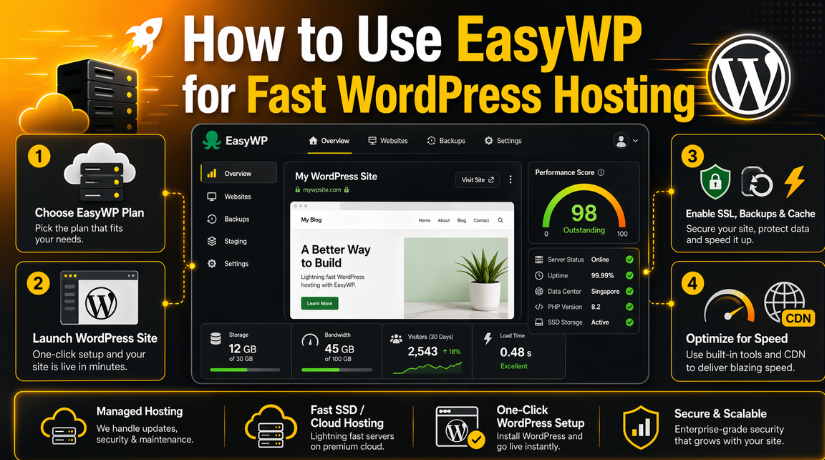
How to Use EasyWP for Fast WordPress Hosting (Complete Guide)
Step 1: Choose the Right EasyWP Plan for Your Website
- Start by checking what kind of website you want to build.
- Choose a basic plan for a small blog or simple business website.
- Choose a higher plan if you expect more traffic.
- Pick a stronger plan if you need more resources.
- Make sure your plan matches your website goals.
- This helps you start the EasyWP setup guide correctly.
Step 2: Create Your WordPress Website in EasyWP
- Buy or activate your EasyWP plan first.
- Open the EasyWP dashboard after plan activation.
- Start the website creation process from the dashboard.
- Create your WordPress site using the available setup option.
- Use a temporary domain if your main domain is not ready.
- Connect the real domain later if needed.
- This is one of the first steps in How to use EasyWP.
Step 3: Log In to the EasyWP Dashboard and Review the Main Options
- Open the EasyWP dashboard after website creation.
- Check the main sections available in the dashboard.
- Find the WordPress admin access area.
- Review backup options and website tools.
- Look at the available settings and control sections.
- Understand where the main website controls are located.
- This helps you follow the EasyWP tutorial more easily.
Step 4: Connect Your Domain Name to EasyWP
- Decide which domain you want to use for the website.
- Connect the domain from the EasyWP dashboard.
- If your domain is with Namecheap, follow the direct setup process.
- If your domain is with another registrar, update the DNS records.
- Make sure the correct domain version is connected.
- Wait for DNS propagation after making changes.
- This is an important part of how to set up EasyWP properly.
Step 5: Enable SSL for a Secure Website Connection
- Enable SSL after the domain connects correctly.
- Make sure your website starts loading on HTTPS.
- Check whether the SSL status is active.
- Test the website in the browser after SSL setup.
- Look for browser warnings or security errors.
- Fix mixed content issues if old HTTP links appear.
- This step is essential in any EasyWP beginner guide.
Step 6: Open WordPress Admin and Start Basic Site Setup


- Open the WordPress admin area from the EasyWP dashboard.
- Install a theme that fits your website type.
- Add only the plugins you really need.
- Set the permalink structure correctly.
- Create the main pages for your website.
- Check the website layout on mobile and desktop.
- This is where EasyWP WordPress hosting becomes useful for real work.
Step 7: Create a Backup Before Major Changes
- Create a backup before making any major change.
- Back up the website before updating themes or plugins.
- Back up the website before design edits.
- Back up the website before content restructuring.
- Keep backups as a safety step in your routine.
- Use this habit to avoid bigger problems later.
- This is a smart part of learning How to use EasyWP.
Step 8: Migrate Your Existing WordPress Website if Needed
- Check whether you already have a website on another host.
- Choose a migration plugin if you want an easier transfer.
- Use manual migration if your website needs it.
- Move the website carefully to EasyWP.
- Test the migrated website before final domain switching.
- Check pages, images, links, and plugins after migration.
- A proper EasyWP setup guide should always include this step.
Step 9: Optimize the Website After Setup
- Compress large images before or after upload.
- Remove any plugin you do not need.
- Keep the theme lightweight and clean.
- Test website speed after major changes.
- Avoid adding too many heavy design elements.
- Review performance regularly after setup.
- This helps improve results in your EasyWP tutorial workflow.
Step 10: Keep Managing the Website Regularly
- Check backups on a regular basis.
- Update plugins and themes carefully.
- Review SSL and domain status from time to time.
- Test forms, menus, and important pages often.
- Review the website on both mobile and desktop.
- Monitor the website after major updates.
- This keeps your EasyWP WordPress hosting setup stable over time.
Common EasyWP Problems and How to Solve Them Before Go Live
Even a simple hosting platform can create problems sometimes. That does not always mean the hosting is bad. In many cases, the issue comes from setup mistakes. Some problems also happen during migration or domain connection. That is why users should learn the common EasyWP issues early. It helps them fix problems faster and avoid bigger website damage. If you are learning how to use EasyWP, this part is very important. A practical EasyWP tutorial should always explain the common issues clearly. That makes the platform easier to manage in real situations. The good part is that many EasyWP problems are fixable. You just need to identify the cause first. Then you can take the right action step by step.
Domain Not Connecting Properly and Why This Problem Happens on EasyWP
A domain connection problem is one of the most common issues. This usually happens during the first setup stage. Sometimes the wrong DNS records are added by mistake. In other cases, users connect the wrong domain version. For example, they may connect the non-www version incorrectly. Domain propagation can also take time after changes are made. During that time, the website may not open correctly. This can confuse many beginners during setup. That is why a good EasyWP setup guide should explain domain steps clearly. If your domain is not connecting, first check the DNS records carefully. Then confirm which domain version should be active. After that, give the records enough time to update. This simple check can solve many early website access issues.
SSL Not Working After Setup and How to Fix It Safely
SSL issues are also common during website launch. This usually happens after the domain is connected. If the domain is not pointed fully, SSL may not activate properly. Some users also see mixed content warnings on the website. This happens when old HTTP links still remain inside pages. The website may open, but the security lock may not appear. That can reduce user trust and create browser warnings. If you are following an EasyWP beginner guide, SSL should never be skipped. First, confirm that the domain is fully connected. Then check whether SSL is active in the site settings. After that, test the website in the browser. If warnings still appear, review old links and image paths. This is an important part of how to set up EasyWP correctly.
Website Looking Broken After Migration and What You Should Check First
Migration problems can make a website look broken after transfer. This can happen even when the hosting is working fine. Sometimes images do not load after migration. Sometimes the theme does not display correctly. Broken permalinks can also cause pages to stop opening. In other cases, plugins may not carry settings properly. This creates confusion for users moving from another host. That is why testing is very important after migration. A proper EasyWP tutorial should explain this in a practical way. First, check the theme and plugin setup carefully. Then review image paths and internal links. After that, resave permalinks inside WordPress settings. Also test forms, menus, and important pages one by one. These checks solve many migration errors quickly.
WordPress Login Confusion and Why Many Users Face It After Setup
Some users face login problems after site setup or migration. This does not always mean the website is broken. Sometimes they use the wrong login URL by mistake. In other cases, they try old credentials after migration. Password reset issues can also create confusion. New users often feel worried when they cannot log in quickly. That is why login access should always be tested early. This matters a lot in any EasyWP setup guide for beginners. First, confirm the correct WordPress admin login URL. Then check whether the username and password are current. If needed, use the reset option carefully. It is also smart to save login details securely after setup. That reduces future login stress and support needs.
Website Still Feeling Slow and Why Hosting Alone Is Not Always the Cause
Some users move to EasyWP and still feel the site is slow. This can be frustrating at first. But the cause is often inside the website itself. Heavy themes are a common reason for poor speed. Too many plugins can also slow pages badly. Large images often increase loading time on every page. Extra scripts and page builder effects can also hurt performance. This is why EasyWP WordPress hosting should be paired with smart website building. A clean setup gives better results than a heavy design. If you are learning How to use EasyWP, remember this clearly. First, check your theme and plugin count. Then review image sizes and frontend elements. After that, test the website again. Many speed issues improve after basic optimization work.
Backup Restore Problems and Why Website Recovery Can Fail Sometimes
Backups are helpful, but restore issues can still happen. Sometimes users choose the wrong backup version by mistake. In other cases, they restore an older backup and lose recent work. Some users also forget to keep an extra local copy. That becomes a problem when urgent recovery is needed. This is why backup handling should be done carefully. A useful EasyWP beginner guide should explain this clearly. Always name or track your backup points properly. Create backups before each major website change. Keep a clear idea of what changed after each backup. If you need to restore, check the backup date first. This small step can prevent bigger recovery problems later.
File Access Confusion and Why Users Should Handle SFTP Carefully
Some EasyWP users also get confused about file access. They may not know where the SFTP details are. Others may open files without understanding the risk. This can lead to broken website code or layout issues. File access is useful, but it should be handled with care. It is not something beginners should change without reason. A practical EasyWP tutorial should mention this clearly. If you need file access, first understand what you want to edit. Then create a backup before touching anything important. Avoid random file changes without testing. This keeps your website safer and easier to manage over time.
Best Practices for EasyWP Users Who Want Better Speed, Stability, and Fewer Problems
Using EasyWP well is not only about launching a website. It is also about managing it the right way later. Good habits can prevent many common website problems. They can also improve speed and long-term stability. A smart user does not wait for the site to break. They build safer practices from the beginning. This is a key part of any strong EasyWP setup guide. Hosting gives the base, but user actions shape the results. If you want better website performance, follow good habits early. These best practices can save time, money, and stress later. They also help you get more value from EasyWP WordPress hosting.
Start With a Clean WordPress Setup Instead of a Heavy and Confusing Website Build
A clean website setup gives better results from the beginning. Many users install too many tools on day one. That often creates confusion and slows the website later. It is better to start with only the basics. Choose a simple and useful theme first. Then install only the plugins you truly need. This is a smart rule in How to use EasyWP properly. A lighter setup is easier to control and test. It also reduces the chance of plugin conflicts. Clean setup choices support better speed and simpler maintenance later.
Keep Plugins and Themes Updated and Avoid Unused Website Tools
Old plugins and themes can create security and performance problems. They can also break parts of the website after some time. That is why updates matter so much. But updates should still be done carefully. Always check the website after important updates. Delete anything you no longer use. Unused tools increase risk without giving any value. A useful EasyWP beginner guide should always include this advice. Good maintenance means keeping the website lean and current. This helps protect both speed and stability over time.
Make Backups a Normal Part of Your Website Routine From the Start
Many users understand backups only after facing a problem. That is not the best way to learn. Backups should be a normal habit from the beginning. Create a backup before updates and design changes. Create one before replacing plugins or editing files. Keep this routine simple and consistent. This habit is a major part of how to set up EasyWP safely. Backups reduce the damage when mistakes happen. They also make website work less stressful overall. A protected website is easier to manage with confidence.
Use EasyWP Features Properly Instead of Ignoring Helpful Website Tools
EasyWP includes useful tools that many users overlook. Some users launch the site and ignore the dashboard later. That is not the best approach. Learn where backups, SSL, and site access are located. Check your domain and security status regularly. Review the main controls from time to time. This helps you notice small issues early. A strong EasyWP tutorial should teach users to use the platform fully. Better platform knowledge leads to better website decisions. It also reduces avoidable mistakes during regular maintenance.
Keep Optimizing Website Speed Instead of Assuming Hosting Will Do Everything
Good hosting helps, but it is not the full answer. Website speed still depends on smart setup choices. Compress images before uploading large media files. Keep your theme light and easy to load. Limit extra scripts and heavy design effects. Review plugin use often and remove unnecessary tools. This is one of the most important lessons in EasyWP WordPress hosting. Better results come when hosting and optimization work together. A fast website needs both a strong base and clean design choices.
Protect Website Security With Better Habits and Safer User Access
Security also depends on daily website habits. Use strong passwords for every important login. Limit admin access to trusted users only. Keep WordPress, themes, and plugins updated regularly. Avoid unsafe or nulled tools completely. Watch for strange behavior on the website. Slowdowns, redirects, and login issues can be warning signs. A useful EasyWP setup guide should always include security habits. Safe website care protects your content, users, and business reputation. Small safety steps can prevent bigger problems later.
Test Website Changes Before Making Them Public for All Visitors
Many users make changes and publish them without checking first. That often leads to broken pages or layout issues. It is better to test first before going fully live. Review the website on both desktop and mobile devices. Check forms, menus, links, and key pages carefully. Use maintenance mode when larger changes are happening. This creates a cleaner user experience during updates. If you are learning How to use EasyWP, this is a very smart habit. Testing helps you find small mistakes before visitors do. That makes the website feel more reliable and professional.
Remember That Hosting and Website Optimization Must Work Together for Better Results
This is the final best practice to remember. EasyWP can provide a solid hosting base for WordPress. But that alone is not enough for great results. The website still needs clean structure and smart maintenance. Good themes, limited plugins, strong backups, and regular testing all matter. A complete EasyWP beginner guide should make this point very clear. The best website results come from teamwork between hosting and setup. When both are handled well, the website becomes faster, safer, and easier to manage.
Conclusion
EasyWP can be a strong option for WordPress users today. It is especially useful for people who want simpler website management. It can also suit users who want better speed potential. But the platform works best when used the right way. Domain setup, SSL, backups, optimization, and testing all matter. If those areas are handled well, the experience becomes much smoother. This is why How to use EasyWP is an important topic for many beginners. The platform is simple, but good habits still matter. A complete EasyWP tutorial should always show both the tools and the right practices. That is the best way to get stable long-term results.
If you need help with EasyWP WordPress hosting, website migration, SSL setup, domain connection, speed improvement, or fixing WordPress issues, 24x7WPSupport can help you handle everything more smoothly. Our team can support you with EasyWP setup, website troubleshooting, performance fixes, plugin issues, and ongoing WordPress maintenance so your website stays faster, safer, and easier to manage.




Brian is a WordPress support specialist and content contributor at 24×7 WP Support. He writes practical, easy-to-follow guides on WordPress troubleshooting, WooCommerce issues, plugin and theme errors, website security, migrations, performance optimization, and integrations. With a focus on solving real website problems, Brian helps business owners, bloggers, and online store managers keep their WordPress sites running smoothly.
